

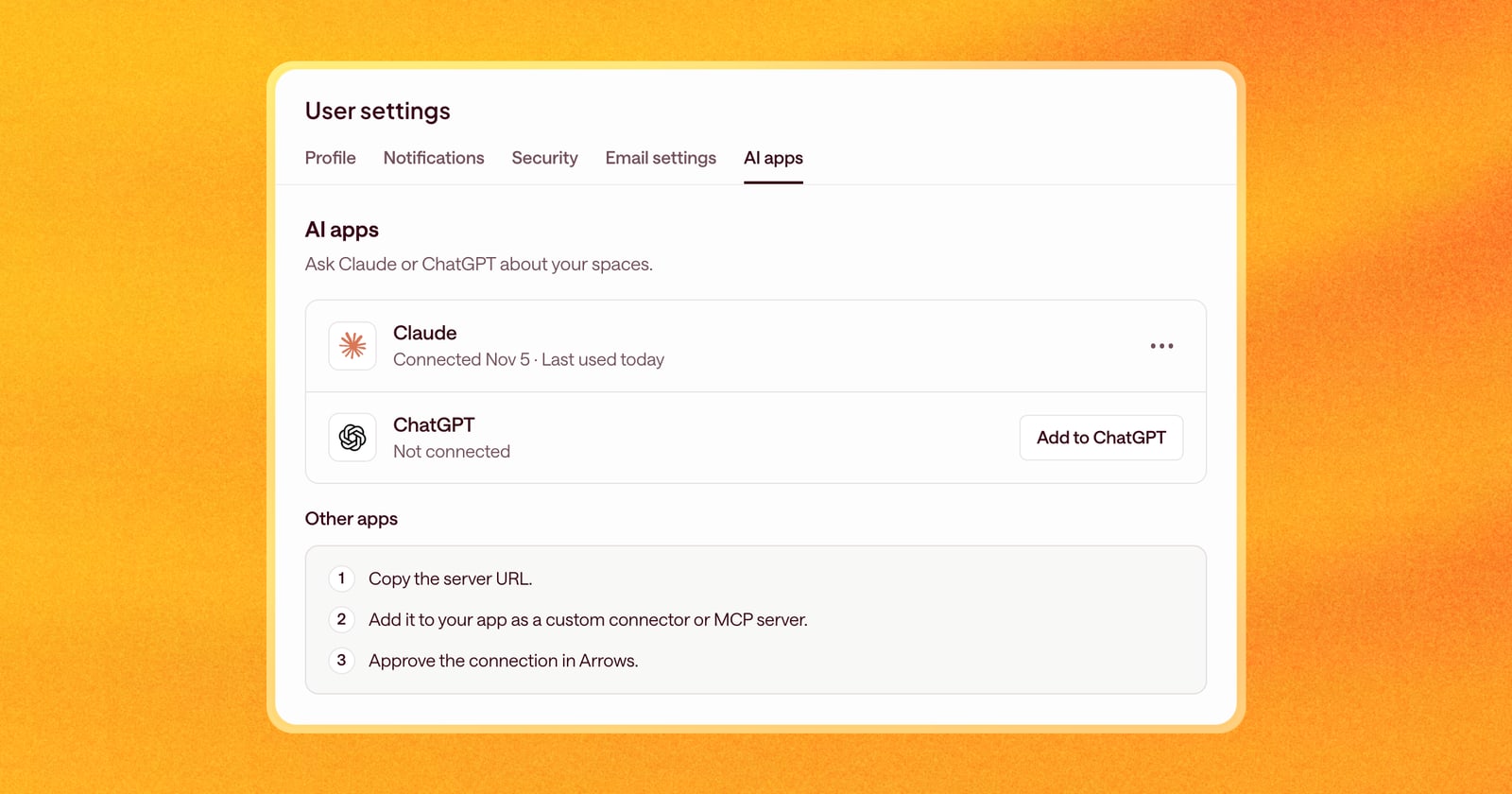
Most of the time, you work one deal at a time. You open the deal in Arrows, see what Arrows prepared, and approve it. But some questions and some jobs cut across every deal you have: which deals are stuck, who needs to hear about a launch, what to do with your follow-ups while you’re out.
Now anyone with access to Arrows spaces can connect Claude or ChatGPT to Arrows and work across all of their deals from the AI app they already like to use.
Ask across all your deals
Once you’ve connected, ask about your pipeline the way you’d ask a teammate who had read everything:
- “Which of my deals are stuck?”
- “Which deals need me this week?”
- “What did the buyer say about pricing on the last call?”
- “What’s the next step on every deal Maya owns?”
Your AI app looks through your spaces, reads the meetings, emails, calls, notes, and pages Arrows keeps for each deal, like the deal overview and pre-call brief, and answers with a link back to each deal in Arrows.
Make one change across many deals
This is where it gets useful. Instead of opening deals one by one, describe what you want once, and Arrows does the work on every deal it applies to:
- Tell your pipeline about a launch. “We just launched a new feature. Let everyone with an open deal in my pipeline know about it.” Arrows drafts an email for each deal and adds it to that deal’s Deal Gameplan.
- Run a month-end promotion. “Offer a month-end promotion to all of my open deals.” Arrows writes each email from that deal’s own context, so every buyer gets a note that fits where they are, and queues them up in your Sales Workspace to approve and send in one click.
- Plan around time off. “I’m on vacation for the next three days. Move all of my follow-ups to Monday when I’m back.” Arrows reschedules them across your deals.
Nothing goes out on its own. The drafts wait in Arrows for you to review, edit, and approve, the same as anything else Arrows prepares.
You see what you’d see in Arrows
The connection signs in as you, so your AI app sees the same deals you can see in Arrows, nothing more. A sales leader who can see the whole team’s deals in Arrows can ask about them from Claude or ChatGPT too. Each person connects their own account and can disconnect any time.
Your day-to-day work still happens best in Arrows, where every deal has its gameplan and its work ready to approve. Claude and ChatGPT are there for the moments you want to look across everything at once.
How to use it
- In Arrows, open Settings and go to the AI apps tab.
- Next to Claude or ChatGPT, select Add to Claude or Add to ChatGPT, and copy the server URL.
- In Claude: open Customize, then Connectors. Select Add custom connector, paste the URL, and select Add. Then select Connect and approve in Arrows. On Claude Team and Enterprise, an Owner adds it in Organization settings first.
- In ChatGPT (on the web): open Plugins and select the plus button. Select Add custom MCP server, paste the URL, and choose OAuth. Then select Create as a plugin and approve in Arrows.
- Ask about your deals.
Using a different AI app? If it lets you add a custom connector by URL, the Other apps steps on the same tab work there too.