

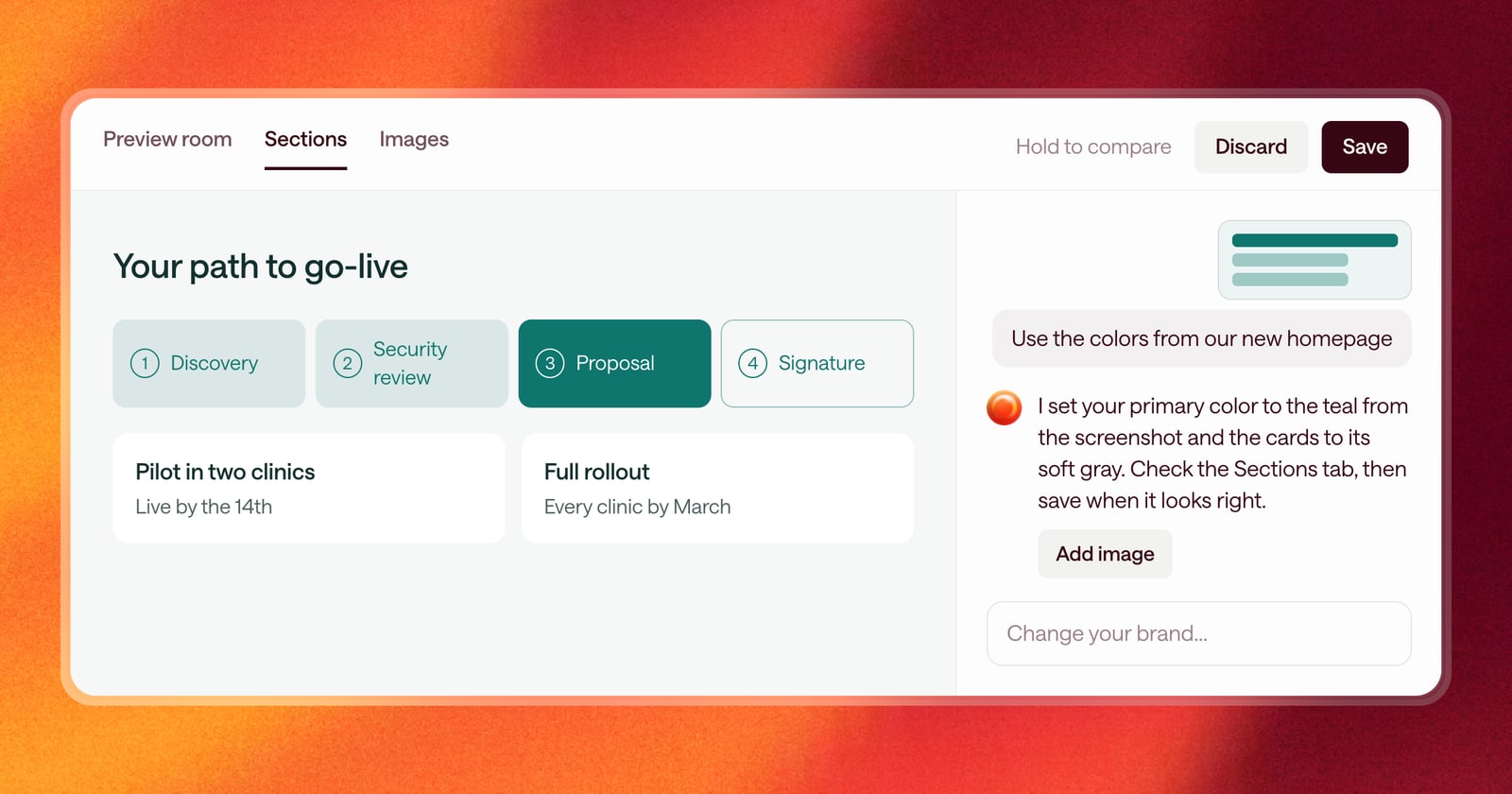
Teams that care about their brand want every sales room to look right: the right logo, the right colors, the right fonts. Getting there used to mean working through a page of settings, changing one at a time, and guessing how each change would look in a room.
Now you can just chat with Arrows. Tell it what you want changed, and it updates your brand settings for you.
One update for the whole organization
Your brand is set once for your whole organization, and every sales room Arrows builds uses it. So when you update it by chatting, the change carries across every rep’s rooms.
That’s the big part. Whoever owns your brand makes the update once, and reps never have to fiddle with colors or fonts. They ask Arrows for a room, and it already looks like it came from your team.
What you can do in the chat
- Ask for the change in plain words. “Use our navy for buttons.” “Make the headlines lighter.” “Make it feel calmer.” Arrows makes the change, and tells you plainly when something can’t be changed.
- Ask what you can change. Not sure what’s possible? Ask, and Arrows tells you.
- Show it an image. Paste or drop a screenshot or a logo into the chat. Arrows can match colors from it, and offers a button to add the image to your brand. Nothing is added until you click.
- Talk instead of type. The chat has Ramble, so you can say what you want out loud.
See it before anyone else does
Changes show up right away on the Brand page, so you can check them before your reps see them. The Sections tab shows every kind of sales room section in your brand, and the Preview room tab shows a full room. Nothing goes live until you select Save, and Discard puts everything back.
An example
Tendril refreshes its website, and its marketing lead wants every sales room to match. She opens Brand, drops in a screenshot of the new homepage, and asks Arrows to use those colors and a lighter headline font. She checks the result on the Sections tab and selects Save. The next room Maya sends to Northstar Orthopedics has the new look, and Maya didn’t have to change a thing.
How to use it
- Open Brand in the side navigation.
- Type what you want in the chat, use Ramble, or drop in an image.
- Check the result on the Sections and Preview room tabs, then select Save.