

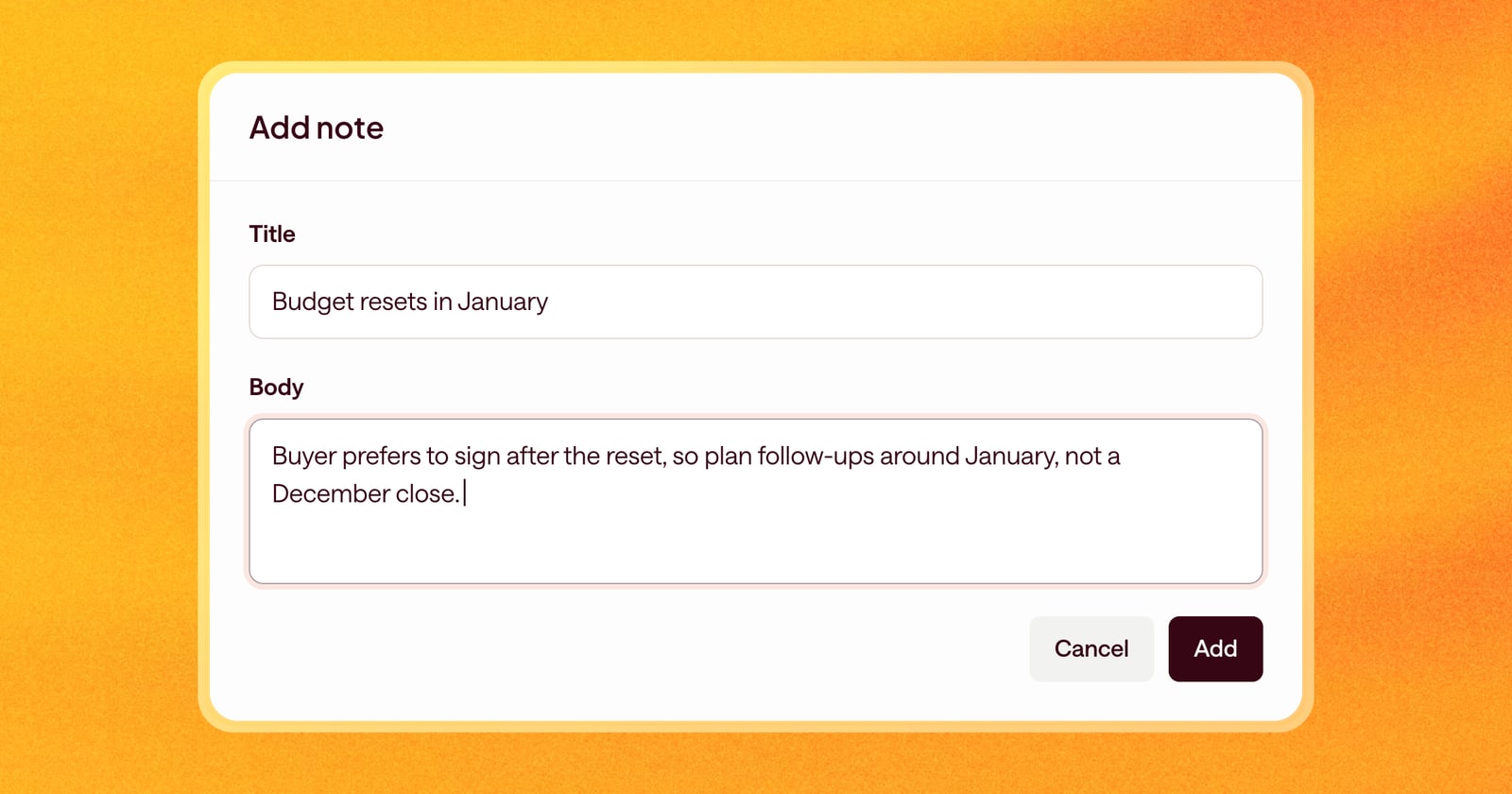
A lot of what you know about a deal never makes it into the CRM. The champion mentioned a reorg over coffee. Procurement told you on a hallway call that they need two weeks for legal. You know it, but Arrows doesn’t.
Now you can tell it. Every Arrows space has notes.
Add a note to any space
Open a space and go to Browse Context. Next to the search bar, choose Add. Give the note a title, write the body, and save.
The body supports formatting like headings, lists, and links, so a note can be a quick line or a short write-up.
Once it’s saved, the note becomes part of everything Arrows knows about the deal. Arrows reads it the same way it reads emails, meetings, and calls, and uses it when it plans next steps, drafts follow-ups, or builds a brief.
Arrows can take notes too
Arrows can add its own notes to a space. That’s useful when it finds something worth keeping, like the results of a search or research on the buyer’s company.
You can also ask for one in chat. For example:
“Look up their last two funding announcements and save what you find as a note.”
Arrows does the research and saves it as a note in the space, so it’s there the next time either of you needs it.
An example
You’re on a second call and the buyer says their budget resets in January, and they’d rather sign then. That’s not a CRM field, and it may not come through clearly in the transcript.
Add a note: “Budget resets in January. Buyer prefers to sign after the reset.” The next time Arrows plans the deal, it knows not to push for a December close and can plan the follow-ups around January instead.
Two small extras
While you’re in Browse Context, people on the deal now have two quick actions: copy their email address, and open their LinkedIn profile.
Getting started
Notes are on in every space. Open a space, go to Browse Context, and choose Add.