

An Arrows space is the home for a deal: the Deal Gameplan, the work Arrows prepared, and everything that has happened with the buyer. As spaces filled up with more meetings, emails, and work, they got harder to move around in.
This week every space gets a new design. It’s built around two questions you ask every time you open a deal: what’s happened, and what do I do next?
A cleaner space
The new space puts the gameplan and its work front and center, with a simpler sidebar for moving between the parts of the deal. Hover over anything in the sidebar and a tooltip tells you what it is, so it’s easy to find your way the first few times.
We also updated navigation across Arrows. Moving from your Sales Workspace into a deal, and between the pages inside a deal, now follows the same pattern, so you always know where you are.
An activity timeline for every deal
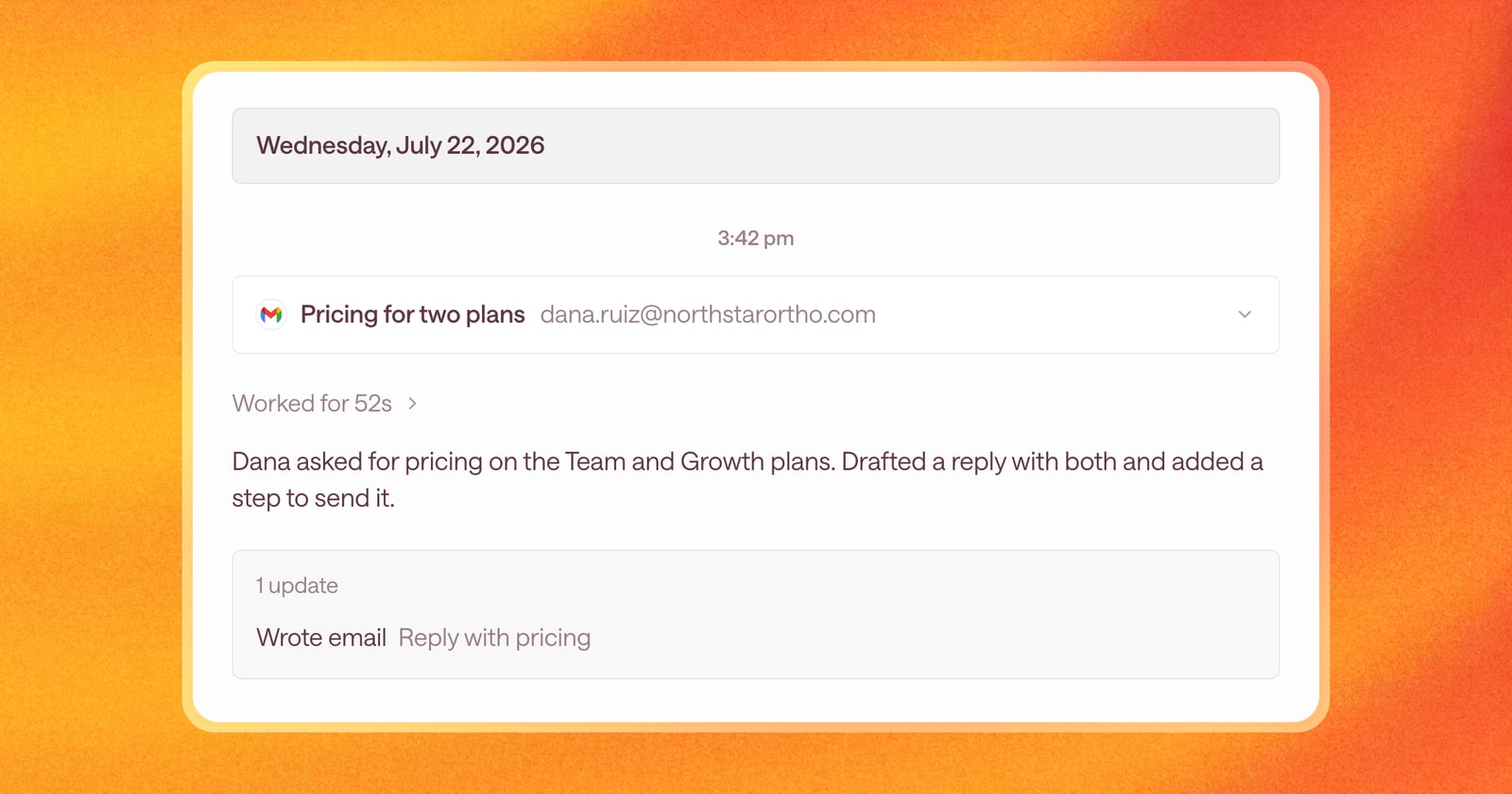
Each space now has an activity timeline: a running log of the deal, grouped by day.
It shows what came in, like a new email, a logged call, or a meeting on the calendar, and what Arrows did because of it. If Arrows updated the gameplan or drafted a follow-up after a call, you can see that it happened, when, and what set it off. Your own messages to Arrows show up there too.
This is the place to go when you want to know “why did the plan change?” or “did Arrows see that email?” The answer is in the timeline.
Sync your CRM on demand
The activity panel shows your CRM connection for the deal, along with when it last synced. Click the refresh icon to sync it right away. Useful when you just logged a note in your CRM and want Arrows to pick it up now.
Pages you can link to
Every page inside a space now has its own web address. That means:
- Refresh works. Reload the page and you land right where you were.
- The back button works. Step back through the pages you visited in a deal.
- Links work. Copy the link to a specific page in a space and send it to a teammate. They’ll open the same page.
An example
Your manager asks why the gameplan for a deal suddenly added a pricing step. You open the space, check the activity timeline, and see it: yesterday afternoon the buyer replied asking for pricing on two plans, and Arrows added a step with a draft reply. You copy the link to that step and send it to your manager. Question answered in under a minute.
Getting started
There’s nothing to turn on. Open any deal in Arrows and you’ll see the new design.