

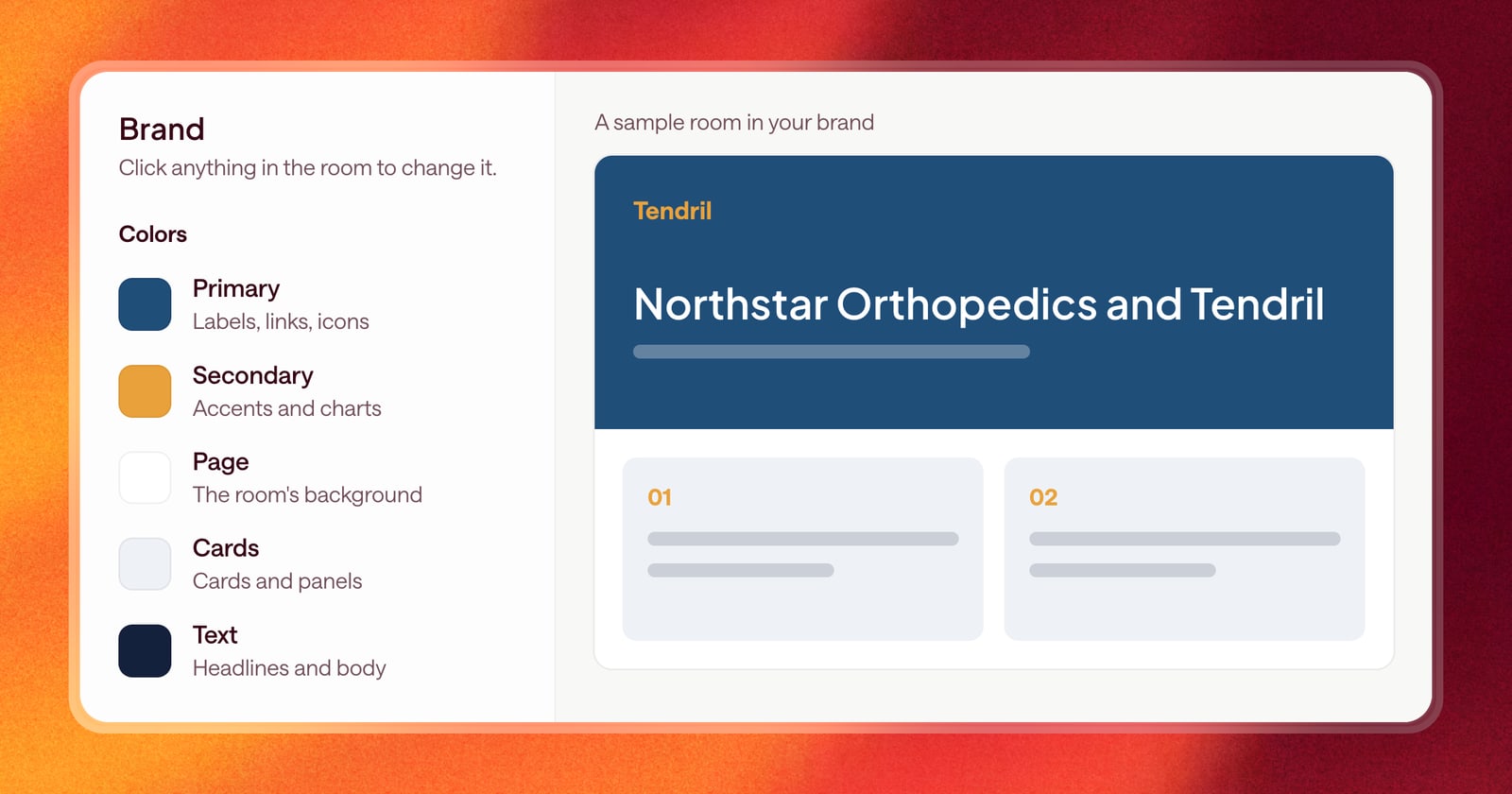
A sales room is often the first thing a buyer’s boss sees about your deal. It gets forwarded to the CFO, opened by IT, and skimmed by the person who wasn’t on the call. It should look like it came from your company and be easy to read.
Today, sales rooms and deal overviews get a new design. And a new Brand page controls how they look.
Brand settings, in one place
The new Brand page replaces the old theming settings. You set your brand once for the whole organization, and every room uses it. There you can set:
- Logos: a symbol, a full logo, and a light version for dark backgrounds.
- Colors: primary, secondary, page background, cards, and text, each with a note on where it shows up in the room.
- Fonts: one for headlines and one for body text.
- Look and feel: type size, spacing, a cover image, and finer touches like section numbers, texture, and photo tone.
As you make changes, you see them on a sample room, so you know exactly what a buyer will see before you save.
The new rooms
The new rooms and deal overviews are live for every customer. Arrows has already rebuilt your recent rooms in the new design, so there’s nothing to move over.
A few things that are better:
- Video, side by side. Video blocks can sit in a two-column grid, so a product walkthrough and a customer story fit next to each other.
- Faster building. Arrows builds and updates rooms faster and more reliably than before.
An example
You’re heading into a proposal stage on a deal and want to send the buyer a room before the next call.
Ask Arrows to build it. It pulls everything it knows about the deal, picks the right resources, and builds the room using your brand: your logo at the top, your colors, your fonts. Ask for a change in chat, like moving pricing above the timeline, and Arrows updates the room. When it looks right, share the link.
Getting started
Open Brand in the side navigation to set up your logos, colors, and fonts. Then open any Arrows space and ask Arrows to build or update the sales room.