

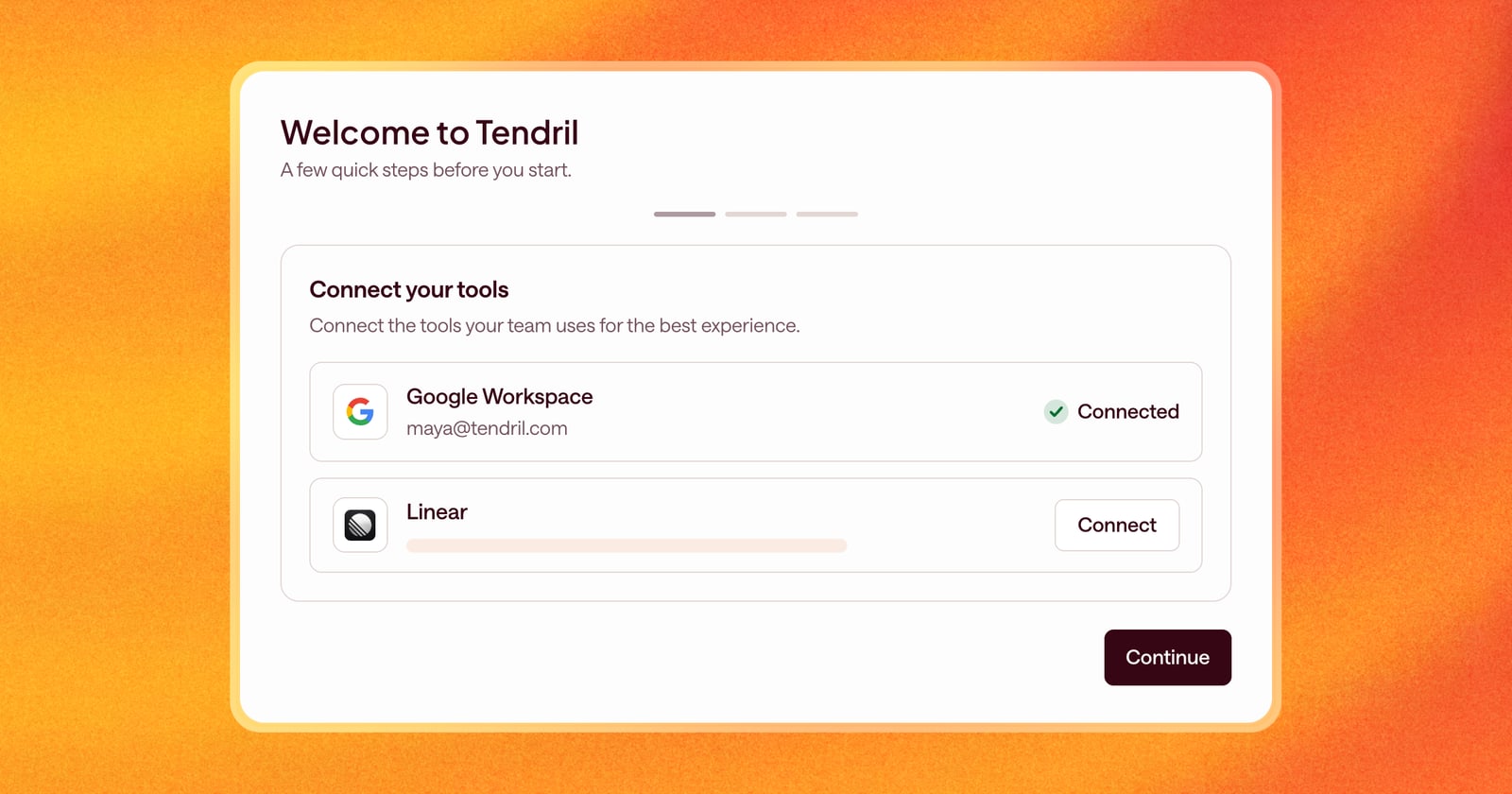
Adding a rep to Arrows used to mean a follow-up message: “Now go connect your calendar. Then set your timezone. Then check your notifications.” Some of that got done. Some of it didn’t, and Arrows worked with less than it could have.
Starting today, Arrows walks every new teammate through setup the first time they sign in.
Invited means ready
When you invite someone, Arrows creates their account right away. They show up on the Team page as invited, and the first time they sign in, setup is waiting for them.
What setup covers
The first time a new teammate signs in, they land on a short welcome page with a few steps and a progress bar.
- Connect your tools. Connect Google Workspace or Microsoft 365, so Arrows can see your calendar and email. If your team turned on other tools from your sales stack that each person connects for themselves, like Linear, they show up here too.
- Set up your profile. Add a photo and confirm your time zone. Arrows detects it from your browser, so most people just click next.
- Choose your notifications. Arrows lets the deal owner know when work on a gameplan step is ready, a buyer opens the sales room, or Arrows creates a new space for one of their deals. Pick whether you hear about it by email, Slack, or both.
If there’s nothing for someone to connect, Arrows skips that step.
Why the time zone matters
Arrows schedules work around your day. Pre-call briefs are ready at the start of your morning, and steps in your Deal Gameplan land on the right date. That only works if Arrows knows where your morning is. Setting it once during setup means every date in your gameplan lines up with your calendar.
For sales leaders
You can see how your team is set up without asking each person. The Team page in the sidebar shows which notifications each teammate receives. If someone hasn’t connected Slack, or turned off email, you’ll see it there.
What this looks like for a new rep
Say a new rep starts on Monday. You invite them in Arrows on Friday.
On Monday, they sign in and see the welcome page. They connect their Google account, confirm their time zone, and choose to hear about work ready for review in Slack. The whole thing takes a couple of minutes.
By the next morning, Arrows has their calendar, their pre-call briefs are ready, and they get a Slack message when their first follow-up is waiting for review.
Getting started
Invite a teammate from the Team page. The next time they sign in, setup starts on its own.