

Arrows does a lot of work while you’re in meetings. The point is that you come back to it, review it, and move the deal forward. That only works if you know when something is ready.
Until now, Arrows told you in a Slack direct message. That’s great if you live in Slack. If you don’t, or your team doesn’t use it, you had to remember to check.
Starting today, Arrows can notify you by email too.
What you’ll hear about
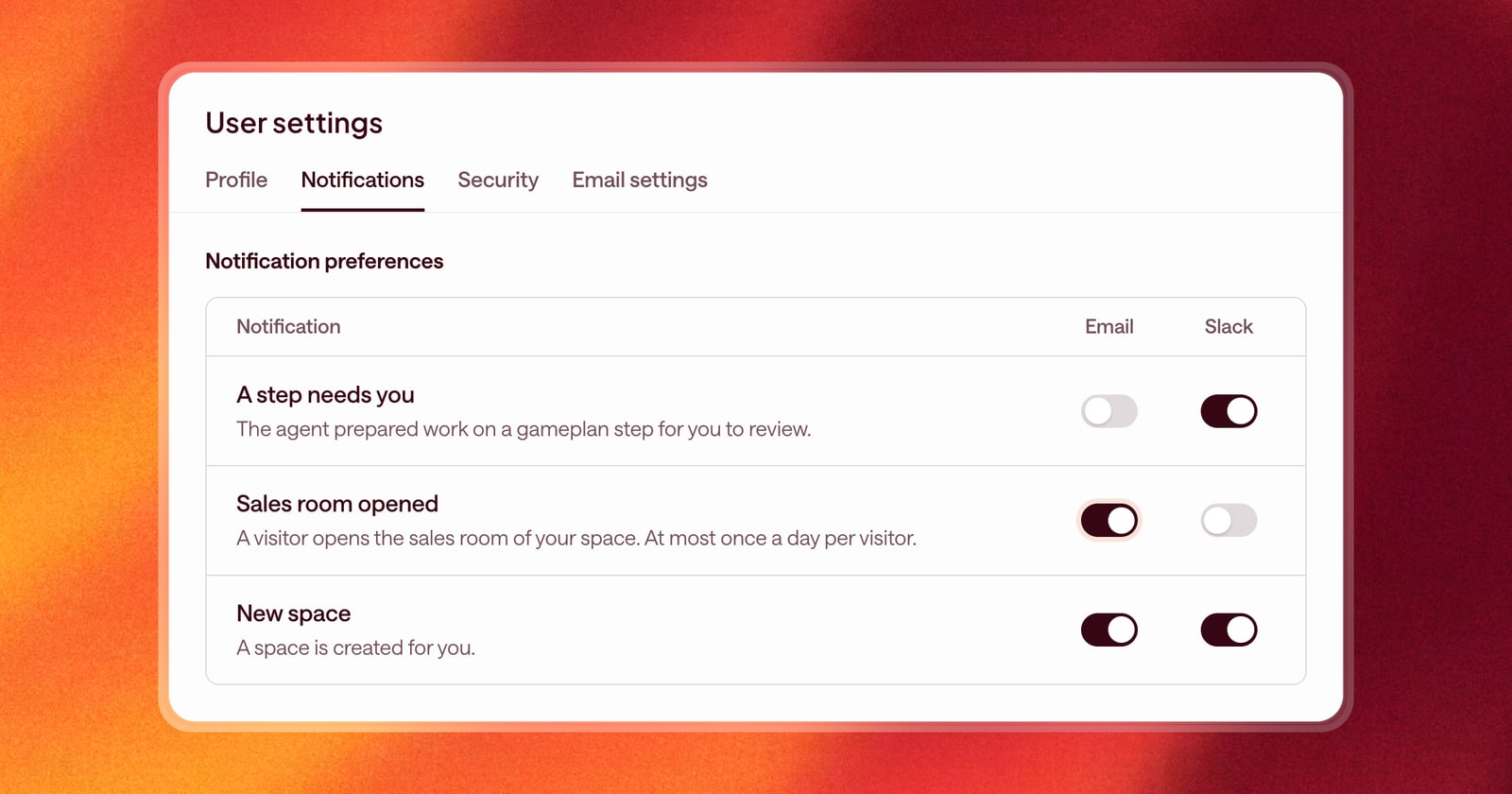
Email notifications cover the same moments as Slack:
- Work is waiting for your approval. Arrows prepared work on a step in your Deal Gameplan, like a follow-up email or a CRM update, and it’s ready to review.
- A buyer opened your sales room. Someone opened the sales room for one of your deals. You’ll hear about each visitor at most once a day, so a busy buyer doesn’t flood your inbox.
- A new deal is ready. Arrows created an Arrows space for you, so you know a new deal is ready to work.
Each notification goes to the person who owns the space.
Choose where each one goes
Some people want every heads-up in Slack and nothing in email. Others want sales room visits by email and everything else in Slack.
You can set that up. In User settings, open Notifications. You’ll see email and Slack, and below them a list of every notification. Turn each one on or off for each place.
For example, a rep might keep notifications about work ready for review in Slack, where they’ll act on them fast, and send sales room visits to email to review at the end of the day.
If Slack doesn’t recognize you
Arrows matches you to your Slack account by email address. If your Slack email is different from the one you use in Arrows, the match won’t happen on its own.
You can fix that yourself. In User settings, under Notifications, choose your Slack user from the list. Search by name or email, pick yourself, and save. Your Slack notifications start right away.
See who gets what
Sales leaders can check how notifications are set up across the team. The Team page in the sidebar shows which notifications each person receives, by Slack and by email. If a rep says they never heard about a sales room visit, you can see why in a few seconds.
Getting started
Open User settings, then Notifications. Check that your email is listed, connect your Slack user if it isn’t matched, and choose which notifications you want in each place. New teammates also choose their notifications during setup.