

Arrows writes a good first draft. But sometimes you want to change one word, swap a date, or cut a sentence. Asking Arrows to do that is slower than just doing it.
Starting today, you can edit email drafts yourself, right where they sit in the step of your Deal Gameplan.
Small changes by hand, big changes by asking
Open any email draft and click into the text. You can change it the same way you would in your inbox: fix a word, add a line, or cut a paragraph.
For bigger changes, keep asking Arrows. “Make this shorter and move the pricing to the end” is still faster than rewriting it yourself. Use whichever fits the change:
- Edit it yourself when you know exactly what you want to say.
- Ask for a change when you want Arrows to rework the email.
Either way, the draft stays in the step, ready to send when you are.
Blanks for anything Arrows can’t know
Some details aren’t in your CRM, your calendar, or your inbox. The link to a case study you haven’t picked yet. A price you still need to confirm. A date the buyer hasn’t given you.
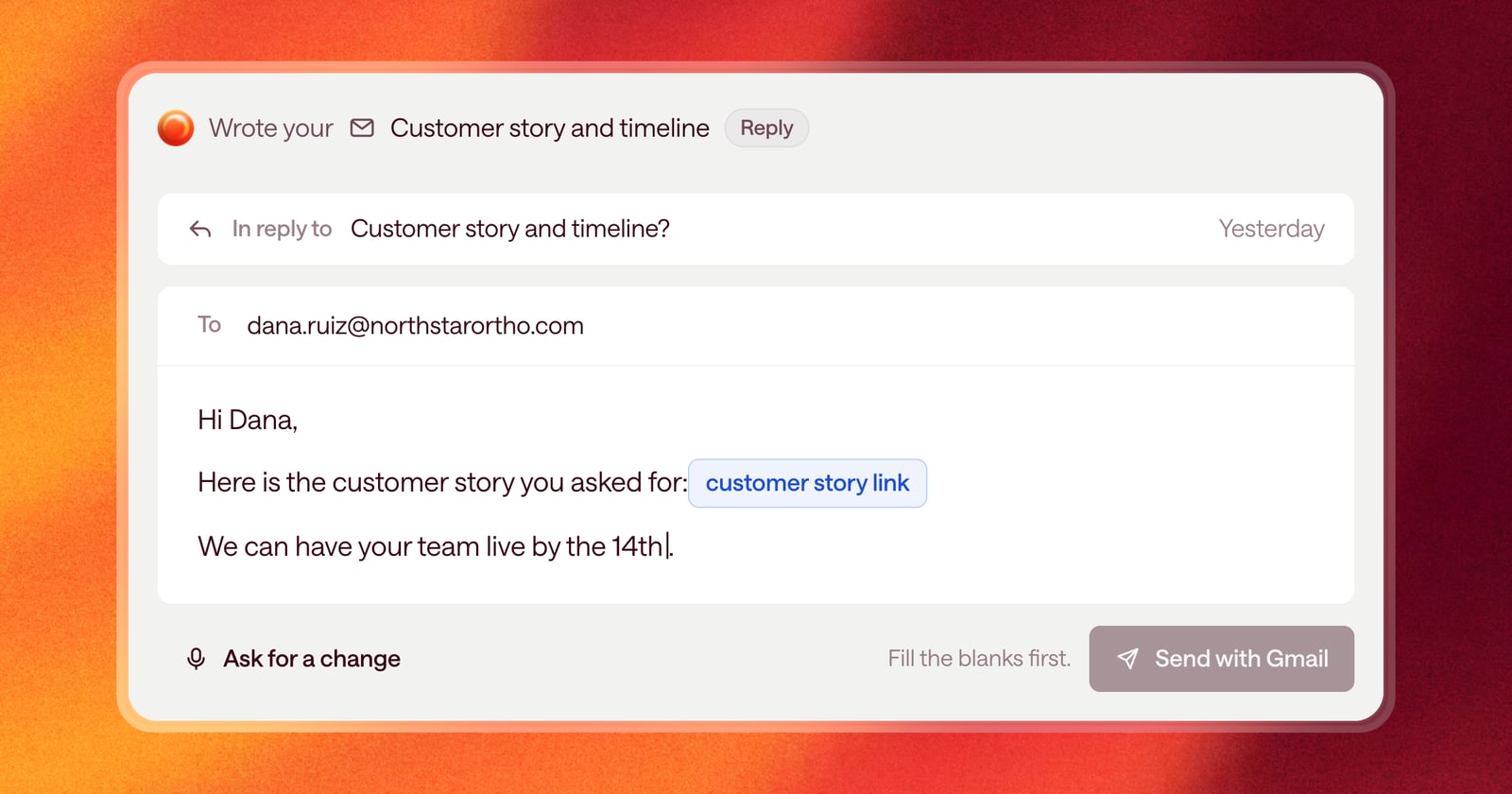
Instead of guessing, Arrows now leaves a blank. Blanks show up highlighted in blue in the draft, with a short label saying what’s missing, like a link, a fact, or something you should double-check.
An email with blanks can’t go out. The send and draft buttons stay off until every blank is filled, so a placeholder never lands in a buyer’s inbox. To move between blanks quickly, press Tab: it jumps from one to the next.
See the email you’re replying to
When Arrows drafts a reply, a small card above the draft shows the email it’s answering. Expand it to read the whole thing without leaving the step.
That means you can check the draft against what the buyer actually asked, in one place.
What this looks like on a deal
Say you had a demo yesterday, and the buyer emailed afterward asking for a customer story and a rough timeline.
- Arrows drafts the reply in the gameplan step. The buyer’s email sits in a card above it.
- The draft leaves a blank where the customer story link goes, because Arrows doesn’t know which one you’ll pick.
- You paste in the link, change “next week” to “the 14th,” and send.
The whole thing takes a minute, and nothing goes out with a gap in it.
Getting started
There’s nothing to turn on. Open any gameplan step with an email draft, click into the text, and start typing. If you see a blue highlight, fill it in before you send.