

A step in your Deal Gameplan holds real work: an email draft, a CRM update, a task. When you open one, you should know three things right away. What did Arrows do? What does it need from me? What do I click?
The old step design made you hunt for those answers. Today we’re rolling out a new one that puts them up front.
What changed
Every step now reads top to bottom in the order you need it:
- What Arrows did. Each piece of work says what it is and where it stands, like a drafted email, a CRM update ready to push, or a task to complete.
- What’s waiting on you. Work waiting on your review is clearly marked, so you can see at a glance whether a step is done or waiting on a decision.
- How to act. The actions for each piece of work sit right next to it. Send the email, push the update, or ask for a change, without leaving the step.
Tasks you can edit
Some work isn’t an email or a CRM update. It’s a task: post an update in Slack, connect with a new stakeholder on LinkedIn, send a deck through a channel Arrows can’t reach.
You can now edit the body of a task before you act on it. Tweak the wording of the Slack message or the LinkedIn note, copy it, send it, and mark the task done.
Tasks also show the icon of where they’re headed, like Slack or LinkedIn, so you can tell at a glance where each one will end up.
See why a step exists
A step is only useful if you trust it. So each step now points to what led to it: the email, the meeting, or the note that made Arrows add it.
Click through and you can read it from the step itself. If Arrows suggests a follow-up about security review, you can see the exact email where the buyer brought it up.
What this looks like on a deal
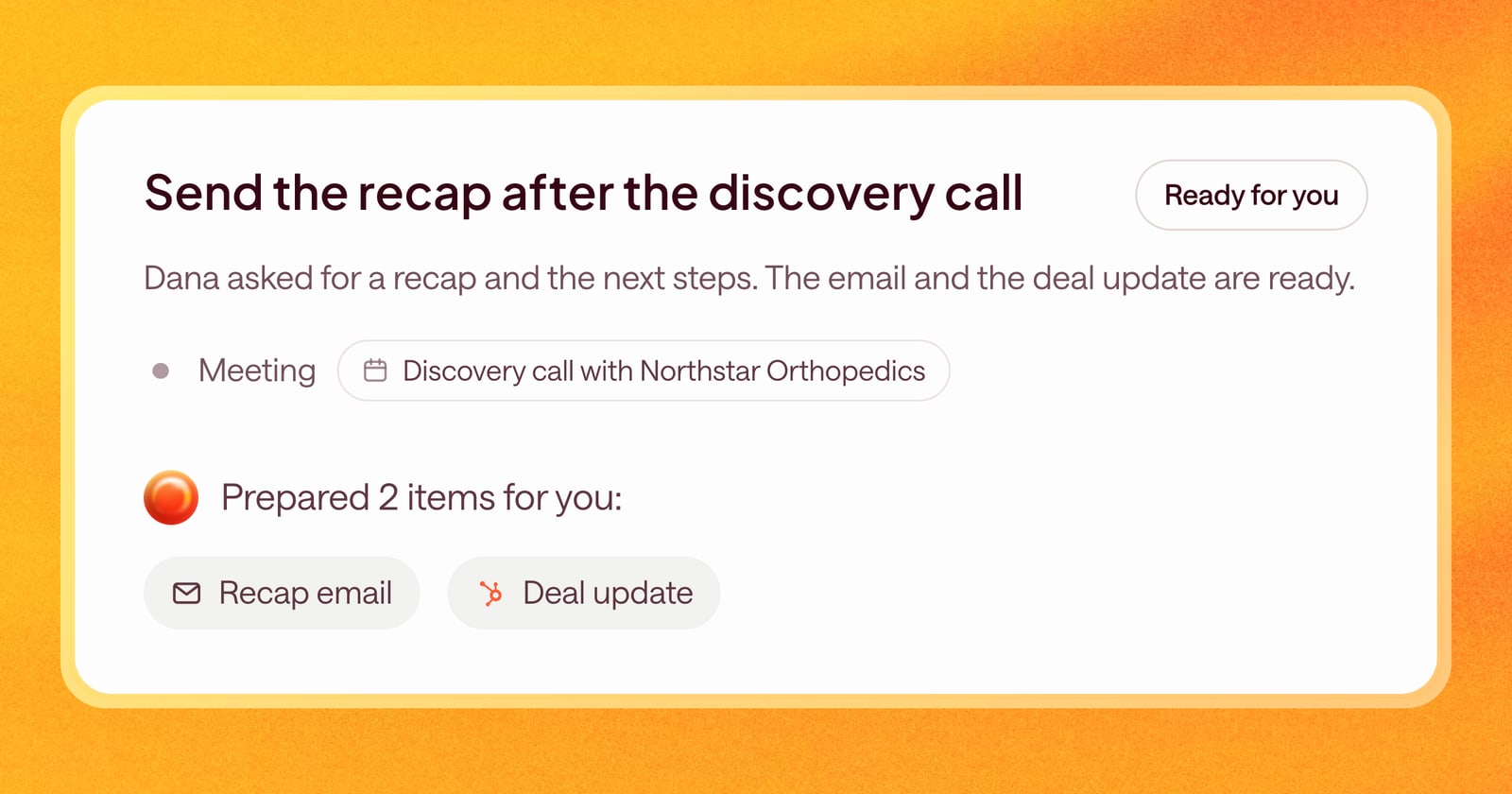
Say your gameplan has a step called “Send the recap after the discovery call.”
- You open it and see two pieces of work: an email draft and a CRM update.
- The step shows the call it came from, so you can check what was said.
- The email is ready for your review. You read it, make one edit, and send it.
- The CRM update is waiting too. You check the fields and push it.
The step is done, and anyone looking at the deal can see what happened and why.
Getting started
The new step design is live for everyone. Open any deal, click a step in the gameplan, and you’ll see it.