

Salespeople don’t spend the whole day at a desk. You’re walking out of an onsite, waiting at the airport, or grabbing coffee between calls. That’s often exactly when a follow-up should go out or a pre-call brief needs a quick read.
Until now, Arrows was built for a laptop screen. Starting today, it works on your phone too.
What changed
We reworked how Arrows lays out its pages, so they fit a phone screen and are easy to use with your thumb. Open Arrows in your phone’s browser and you get the same app you use on your laptop, sized for the screen in your hand.
On your phone you can:
- Check what’s next. See today’s meetings and the work in your Sales Workspace that’s done and waiting for you to approve.
- Read a pre-call brief in the minutes before a meeting.
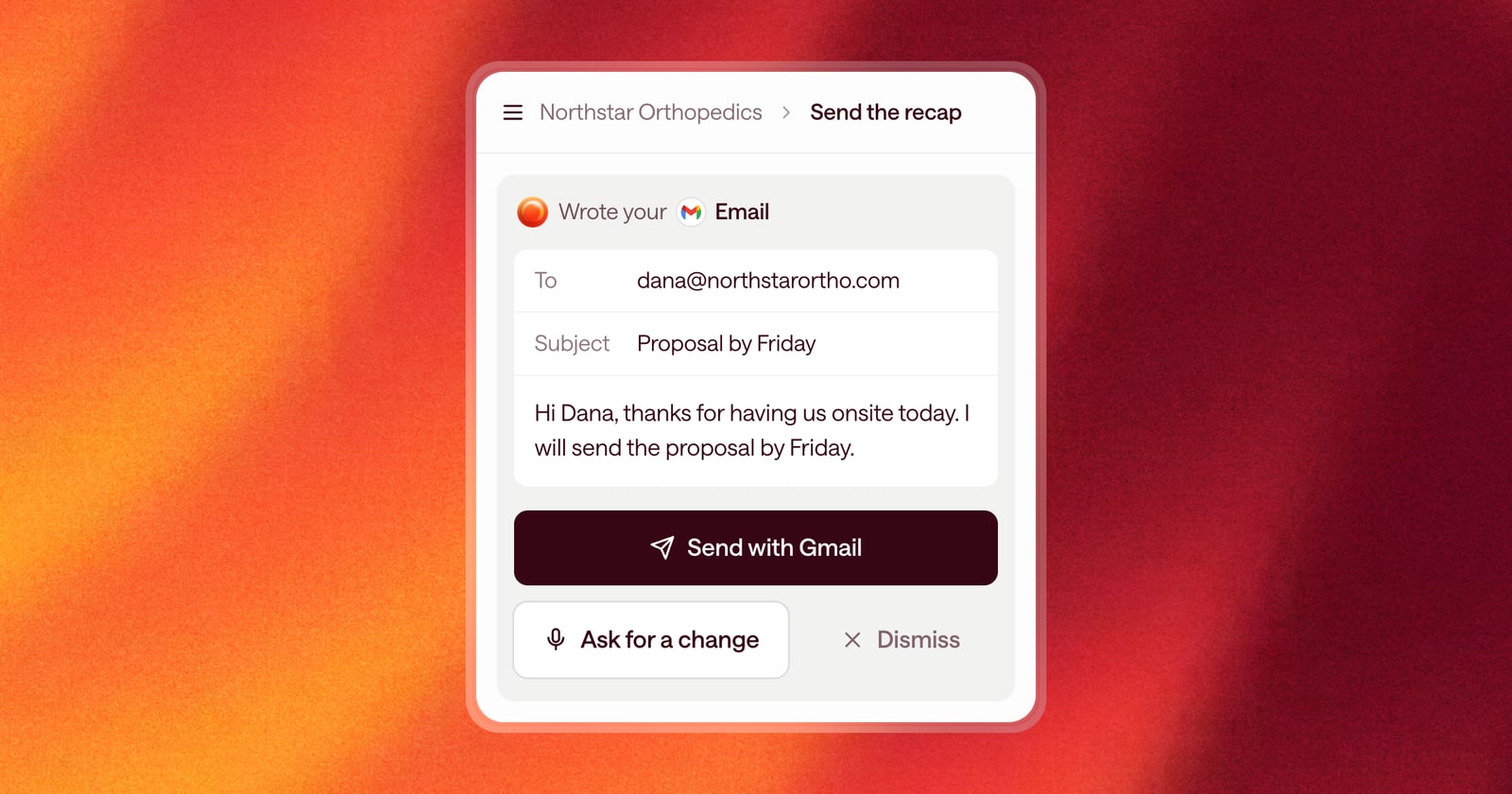
- Review the work Arrows prepared, like a follow-up email or a CRM update, and approve it.
- Look up a deal and see where it stands.
On the home page, switching between tabs on your phone opens a panel from the bottom of the screen, so it’s easy to reach.
An example
You just walked out of an in-person meeting with a buyer. In the car, you open Arrows on your phone and use Ramble to say what happened in your own words: they want a proposal by Friday and need to loop in their head of finance.
By the time you’re back at your desk, the follow-up email and the CRM update are ready to review. Or, if you’d rather not wait, review them on your phone and send the email from there.
Pairs well with notifications
If you get Arrows notifications in Slack, tap the link in the message to open the deal in Arrows on your phone. You go straight from “this needs you” to doing it.
Same Arrows, same deals
There’s no separate mobile version to learn. Your Arrows spaces, Deal Gameplans, and Sales Rooms are the same ones you see on your laptop, so whatever you do on your phone is there when you get back to your desk.
How to use it
Open Arrows in your phone’s browser and sign in. That’s it: there’s nothing to download or install.