
Who this is for: Account executives, sales reps, and sales teams who want to use Claude for the day-to-day work of managing and closing deals - the actual work of moving deals forward.
What you’ll walk away with: Claude configured to know your deals, your buyers, and how you sell, plus a set of workflows you can use every day for pre-call prep, follow-ups, pipeline reviews, and more.
Time required: About 15 minutes to run the setup, plus 10-15 minutes to connect your tools. Ongoing use takes minutes per task.
Why most reps aren’t getting value from AI
Most sales teams that have tried AI and written it off made the same mistake: they opened ChatGPT or Claude, typed a vague request, got generic output, and decided it wasn’t useful.
But the problem isn’t the AI... it’s that the AI has no context about you.
AI doesn’t know anything about you unless you give it that context. It doesn’t know you sell to VP-level buyers at mid-market SaaS companies. It doesn’t know you’re direct in your emails and skip the preamble. It doesn’t know deal X has been stuck for three weeks because the champion changed roles. It doesn’t know your company’s positioning against your main competitor, or that you never discount in a first negotiation conversation.
When you ask Claude to “draft a follow-up email after a discovery call,” it fills in all of those blanks with generic sales language, because it has no other option. The result sounds like it came from a template... because it did.
The fix requires effort upfront: give Claude the context it needs. Your product, your buyers, your voice, your deals, your rules. Do that once, save it to a project, and every interaction after that starts from a place of actual understanding.
This guide is the roadmap for doing exactly that.
What Claude needs to know before it can help you sell
There are four categories of context that separate generic AI output from output that’s actually usable.
1. Your tools
Your CRM, your call recorder, your email, your calendar. These are where your deal reality lives. When Claude can read your pipeline, your call recordings, and your sent emails, it already knows more about your active deals than if you’d spent an hour briefing it yourself. Without tool access, you’re constantly pasting context in manually. With it, Claude can pull what it needs on its own.
2. Your business and buyers
What do you sell? Who buys it? What title signs the deal? What makes a good account versus a bad one? Where do deals usually stall?
Claude doesn’t know your company. It might have general knowledge about your industry, but it doesn’t know your specific value props, your ICP, your pricing structure, or the objections that come up in 80% of your deals. You need to give it that context.
The more specific you are here, the better. “We sell to VP of Sales at B2B SaaS companies with 100-500 employees. Deals typically involve an IT sign-off, and they stall most often when we don’t have a champion who can get budget approved internally. Average sales cycle is 45 days.” That’s far more useful than “we sell to sales leaders.”
3. Your voice
Claude can write an email for you, but if it doesn’t sound like you, you’ll rewrite half of it anyway, which defeats the point.
Your voice includes: whether you’re formal or casual, whether you use short sentences or longer ones, whether you lead with a question or a statement, how you handle the “just checking in” moment (do you use that phrase or hate it?), whether you use bullets in emails or write in paragraphs, how direct you are about next steps, even how you punctuate (Oxford comma or not, exclamation points or never).
The best way to establish your voice is to give Claude examples of your actual emails. Let it learn from what you’ve already written, rather than trying to describe it abstractly.
4. Your rules
Every experienced rep has figured out a set of moves they always make and traps they’ve learned to avoid. These are your rules, and Claude needs to know them.
Examples:
- “I never send a pricing email without first having a verbal conversation about budget”
- “I always offer two next-step options, not one”
- “When competitors come up, I acknowledge them and pivot to our specific strength - I don’t trash talk”
- “I never send a one-line email. Every message has context and a clear ask.”
Rules and preferences like these take years to develop. Once Claude knows them, it applies them automatically.
The tools you’ll need
Required:
- Claude desktop app: the web app works, but the desktop app gives you access to Claude Cowork and scheduled tasks, which are worth having
- A Claude account: the Pro plan ($20/month) gives you access to the full feature set we’re covering
Highly recommended:
- Your CRM (HubSpot, Salesforce, Attio, etc.): so Claude can read your pipeline and deal history
- A call recorder (Grain, Gong, Fireflies, Fathom, etc.): so Claude can pull directly from your call transcripts
- Email (Gmail or Outlook): so Claude can reference your email history
- Calendar: enables automatic pre-call prep before meetings
- Team messaging (Slack or Teams): lets Claude search internal context about accounts
Optional:
- Voice dictation tools: especially useful during setup, when you’re answering a lot of profile questions. Wispr Flow is the one we recommend. Superwhisper and Monologue are solid alternatives. Whichever you use, talking through your answers is faster than typing them.
The more context you add, the more personal and specific Claude’s outputs will be for you.
💡 For a full list of sales tools that connect to Claude, including CRMs, call recorders, and custom MCP servers: Every sales tool that connects to Claude.
Step-by-step setup
Step 1: Download Claude desktop and set up Cowork
Go to claude.ai and download the desktop app for Mac or Windows. Sign in with your account.
Once you’re in, you’ll see Cowork in the sidebar. This is where you’ll be working. Cowork gives you access to scheduled tasks, so Claude can run workflows automatically on a schedule, like a daily pipeline sweep every morning at 8am.
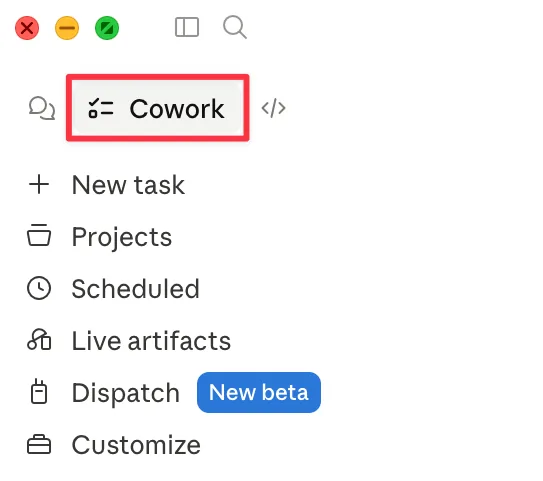
Note: if you stick with Chat or the web app, everything in this guide still works except the scheduled tasks.
Step 2: Create your sales project
In Claude, a Project is a dedicated workspace that holds your instructions and runs with that context every time you open a conversation inside it. Think of it as a version of Claude that already knows who you are before you type a word.
To create one: click New Project in the left sidebar, name it “My Deals” and move on. You’ll add your own customized instructions in Step 5, once you complete Steps 3 through 5.
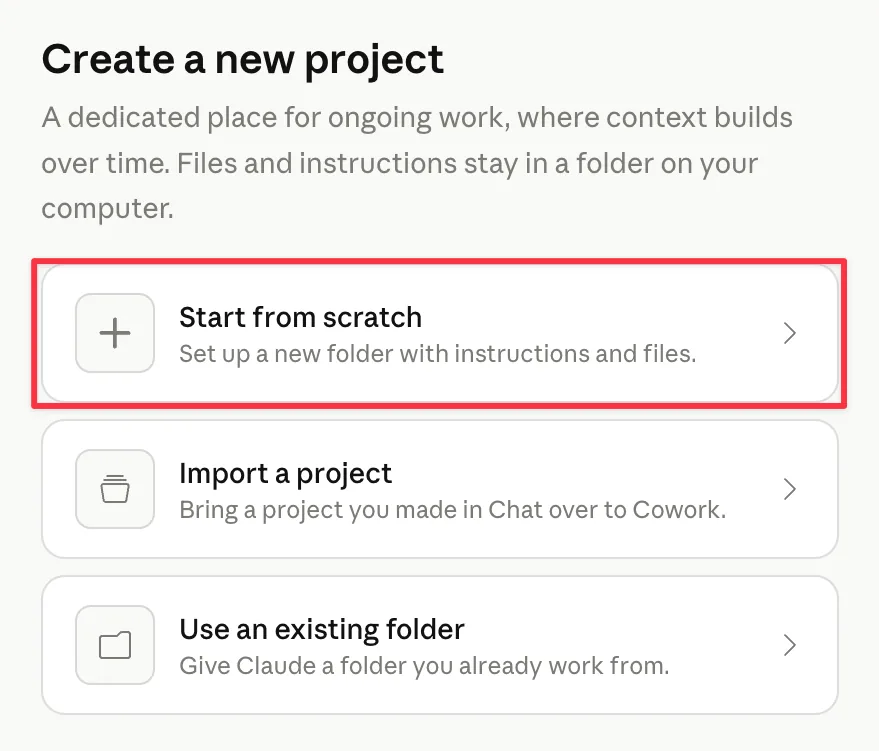
Once you finish this setup, every conversation you open inside this project will automatically have your sales profile, your voice, your rules, and your deal context loaded. You never have to re-explain yourself.
Step 3: Connect your tools
Go to Settings → Connectors in Claude desktop.
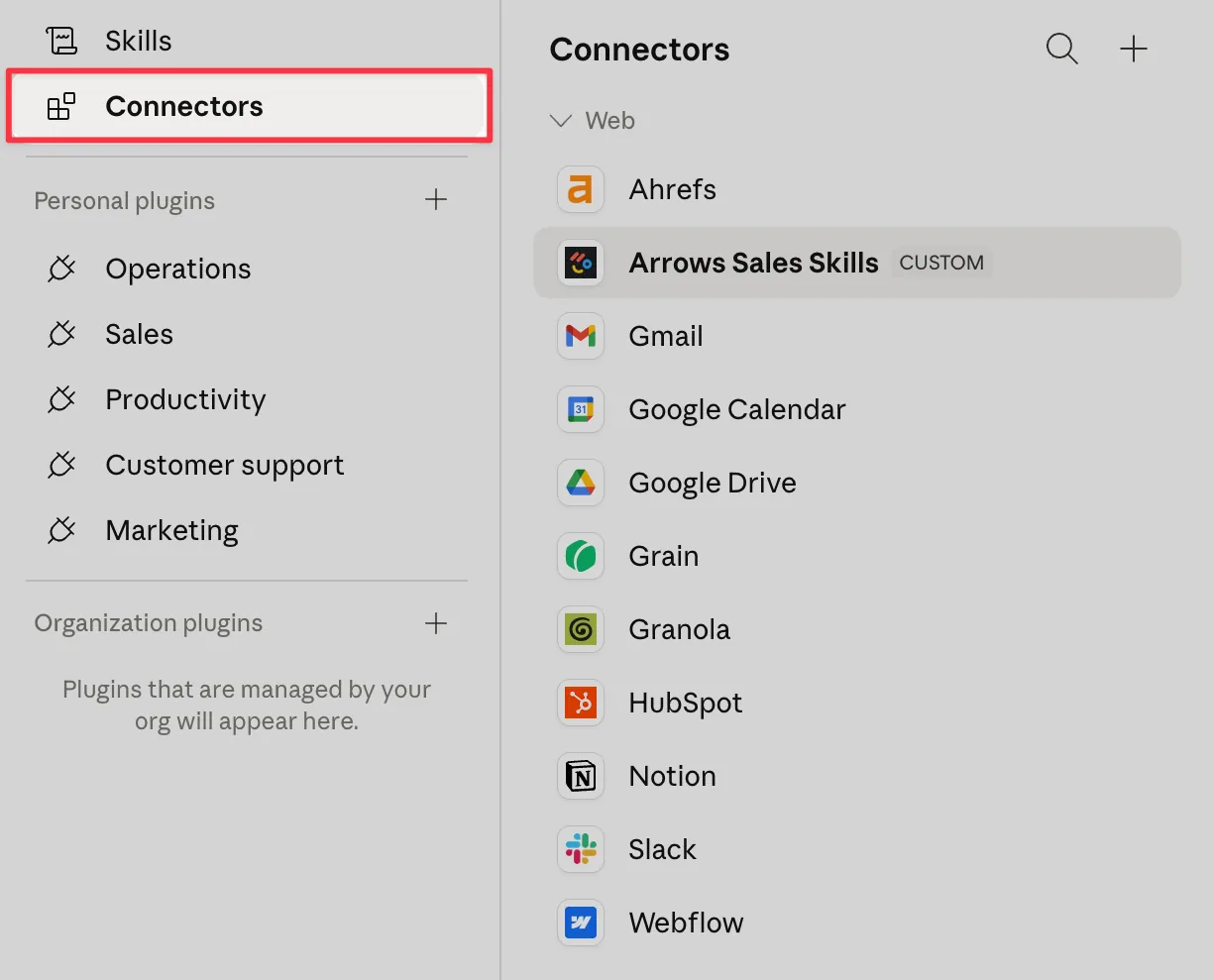
Note: connecting your tools may require admin access or IT approval. If that’s the case at your company, start that conversation before you get to this step.
Your CRM (HubSpot, Salesforce, Attio, etc.) is the most important connection. Once it’s in, Claude can pull your open deals, pipeline stages, close dates, contact history, interaction logs, and upcoming tasks - anything you’d normally have to pull yourself. Most major CRMs are listed in the connector menu.
Your call recorder (Grain, Gong, Fireflies, Fathom, etc.) is what lets Claude learn how you actually sell, not just how you write. It pulls transcripts, extracts action items, and surfaces objections from past calls. Check the connector list for your specific recorder.
Email (Gmail or Outlook) gives Claude your sent folder and recent threads. This is how it learns your writing style and catches context that never made it into your CRM.
Calendar (Google Calendar or Outlook Calendar): connect this and Claude can automatically find your upcoming meetings, pull attendee lists, and trigger pre-call prep without you having to ask.
Slack or Teams: if your team uses chat to discuss accounts internally, this brings that context in too.
💡 For a full list of sales tools that connect to Claude, including CRMs, call recorders, and custom MCP servers: Every sales tool that connects to Claude.
Step 4: Build your sales profile with the Arrows setup skill
Arrows Sales Skills is a free tool that helps you build your personalized sales profile automatically. To install it:
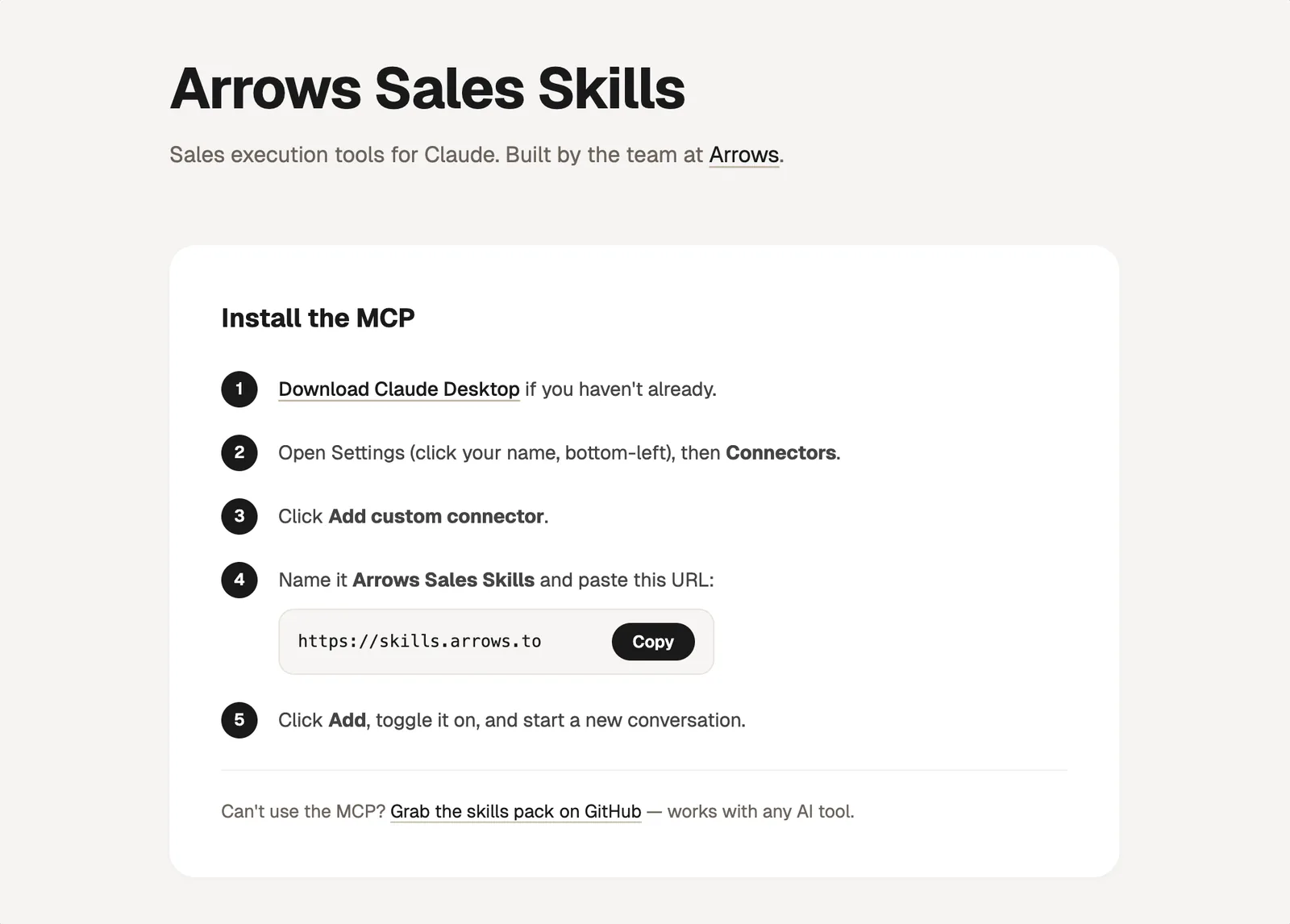
- Go to skills.arrows.to
- Follow the install instructions for Claude desktop to add it as a connector
- Once installed, open a conversation inside your project and run:
“Build my Arrows sales profile”
Tip
If you have a voice dictation tool like Wispr Flow installed, use it now. The setup asks several detailed questions. Talking through your answers is faster than typing them, and you’re going to want to be as detailed as possible.
The setup walks through four phases:
Tool check. First it confirms which connectors you have active and what data it has to work with. The more tools connected, the richer the profile.
Data scan. This is where it does the real work. It goes through your CRM deals, call recordings, and sent emails to learn how you sell. What kinds of accounts you work, what titles you talk to, how you structure your emails, what language you use, where deals tend to stall. This takes a few minutes. Let it run.
Four question sections. After the scan, it asks four sets of questions to fill in anything it couldn’t pull from your data: what you sell, your voice (it shows you what it found and you confirm or correct), your competitors, and what you want Claude doing on your behalf. Plan on 10-15 minutes here. Be specific. The more detail you put in, the better the output.
Your complete sales profile. At the end, you get a comprehensive, structured document covering who you are as a communicator, what you sell, your typical buyer, your rules, and what you want Claude to handle.
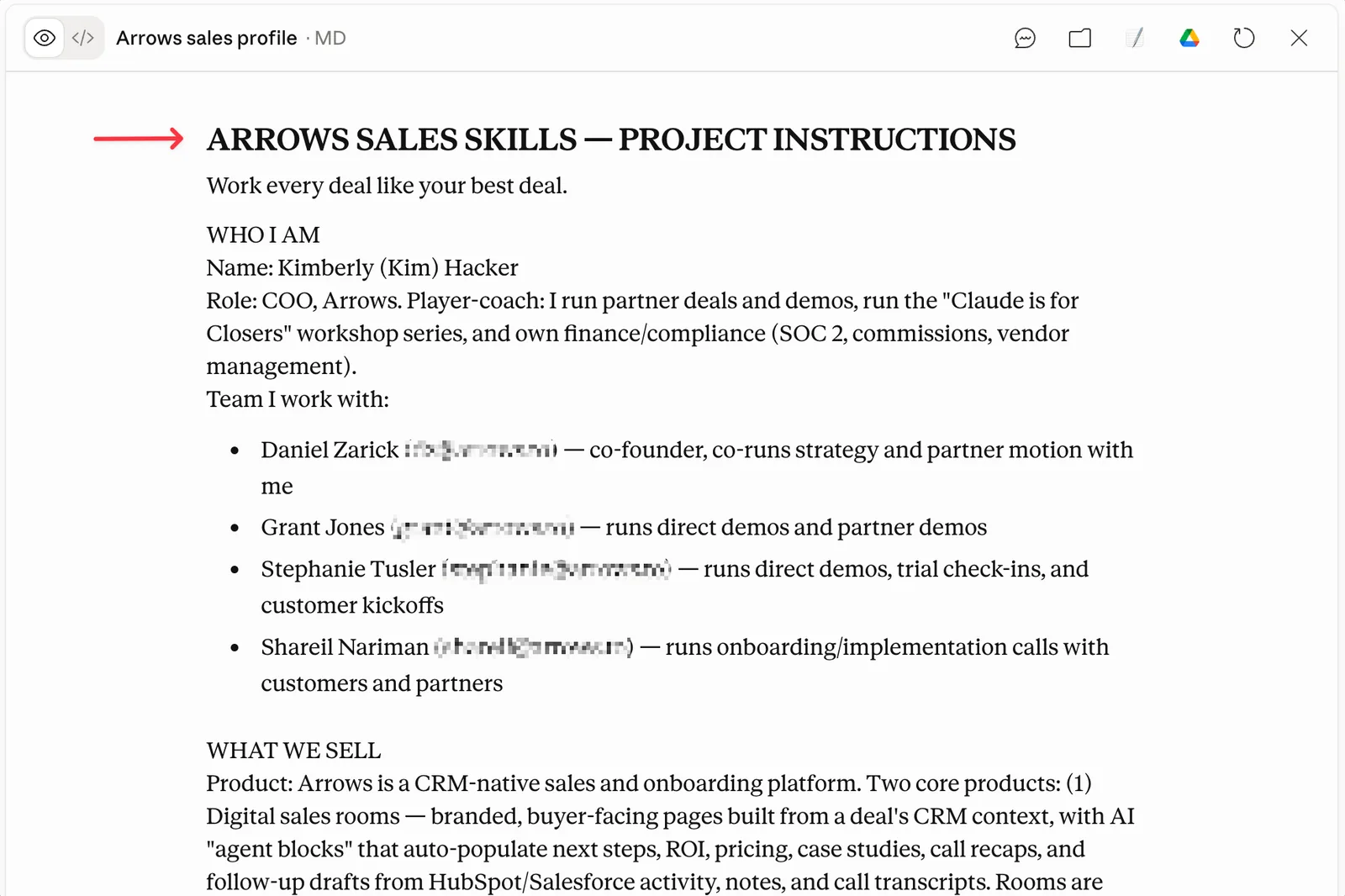
When the profile is ready, read through it. If something sounds off, correct it right there. Getting this right upfront pays off in every interaction after.
Step 5: Write and save your project instructions
Copy the full output from the Arrows setup. Go to your My Deals project, click the pencil icon in the top right corner, paste it into the project instructions field, and save.
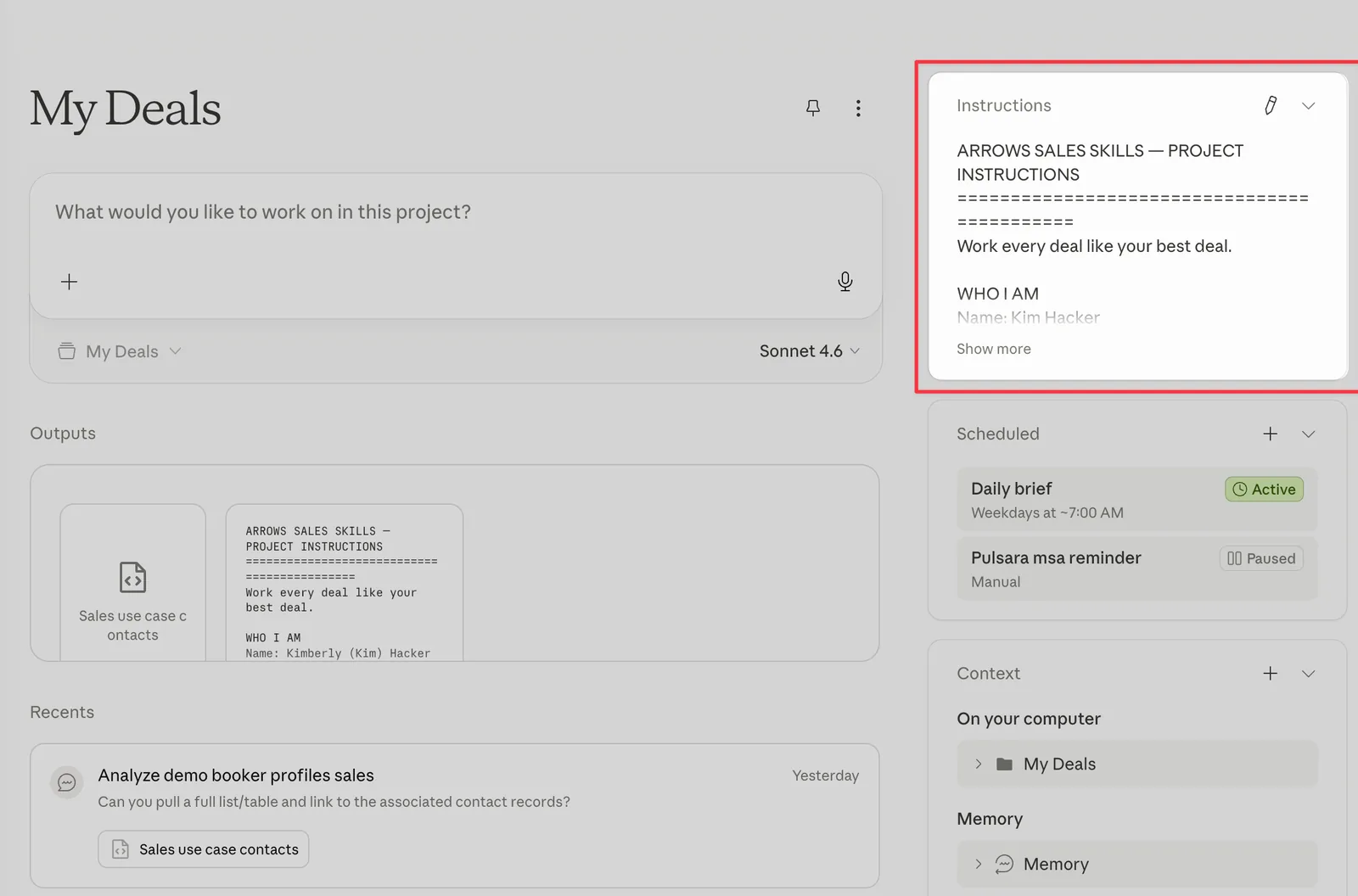
That’s your baseline. Every new conversation you open inside this project now starts with all of that context loaded.
You can add more on top of what the setup generates: specific talk tracks, pricing or discount policies, the names of your internal teammates, anything the setup missed. Edit them as you go.
Daily workflows
Once your project is set up, here’s how to use Claude for the actual work of selling. Run each of these inside your My Deals project, so Claude already has your context before you start. If you’ve already installed the Arrows Sales Skills connector to run your setup, you can trigger all of these with a single phrase.
Pre-call prep
When to use it: Before any meeting with a buyer: discovery calls, demos, check-ins, negotiation conversations.
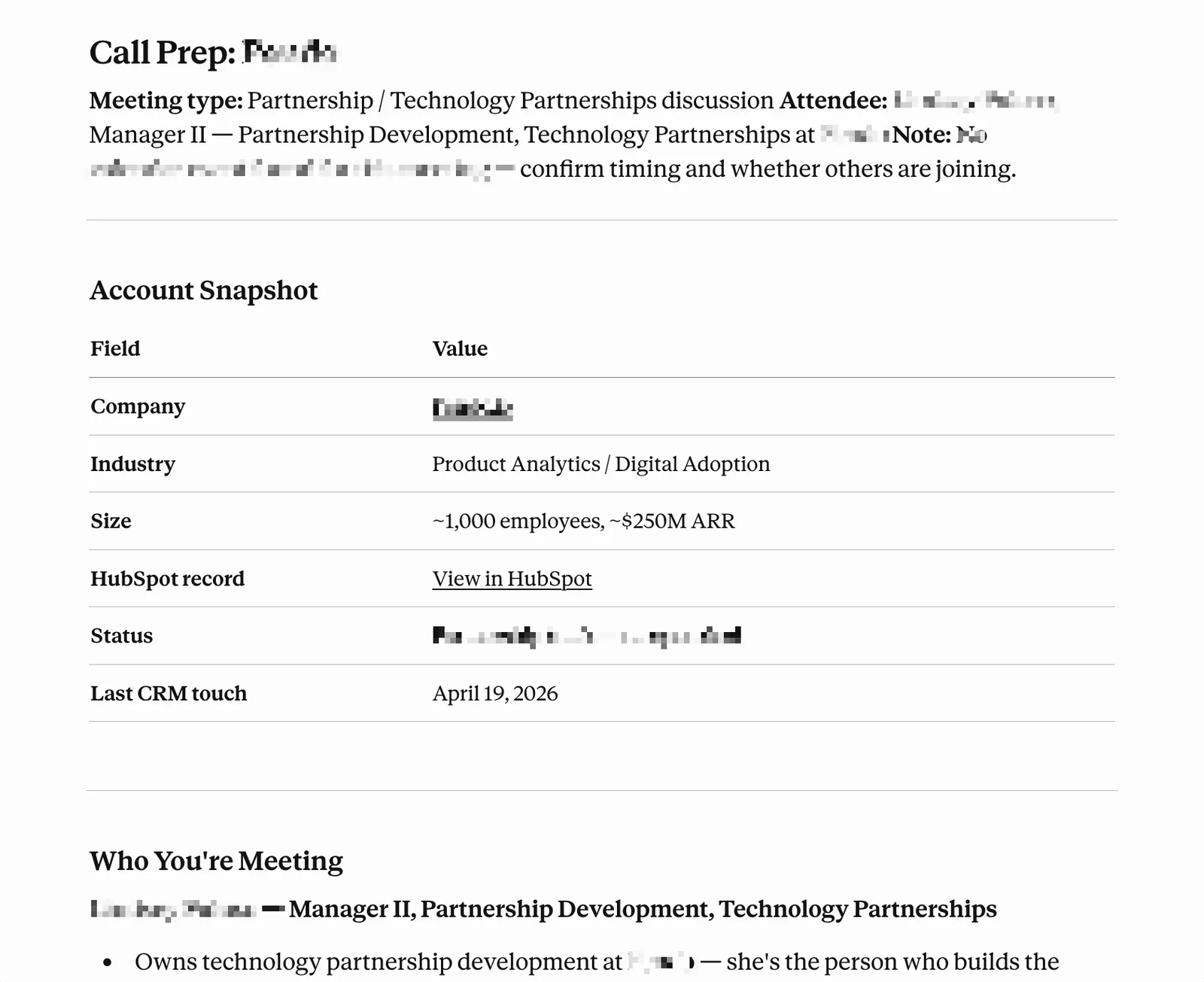
What it does: Claude pulls the deal history from your CRM, relevant emails, prior call notes or transcripts, and attendee backgrounds, and turns it into a brief you can read in under a minute.
How to run it with the Arrows Skills connector:
“Run the Arrows meeting prep for [Company]”
A good pre-call brief covers the company snapshot, who you’re meeting and their role in the deal, what’s happened in the conversation so far, open questions you haven’t asked yet, recent company news worth referencing, a suggested agenda, and objections likely to come up.
Tip
Even when you know the account well, pre-call prep surfaces things you might have forgotten: a question the champion raised two calls ago, a commitment you made that hasn’t been sent yet.
Post-call follow-up emails
When to use it: Right after a call, while the conversation is fresh.
How to run it with the Arrows Skills connector:
“Run my Arrows post-call on [Company]”
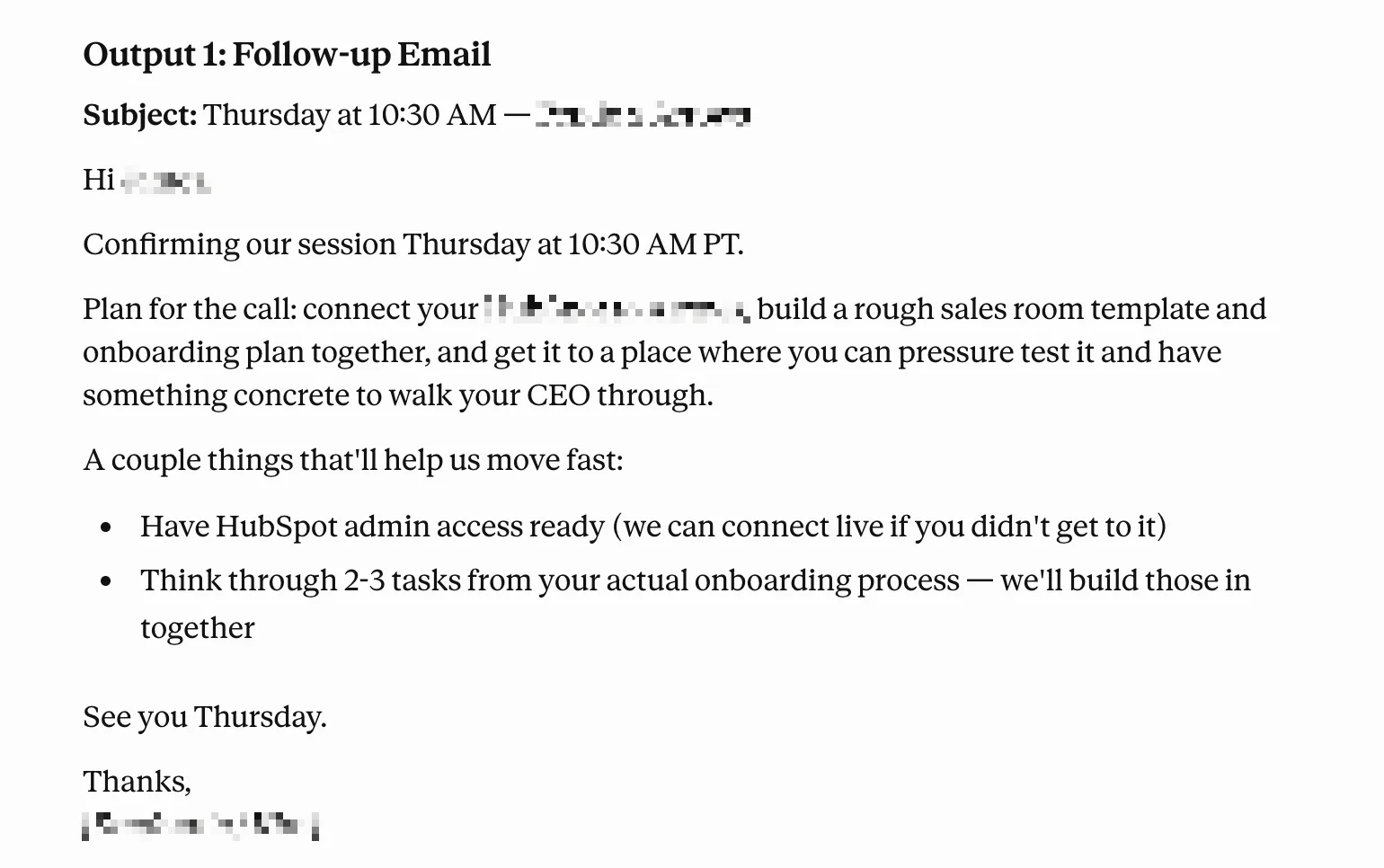
What it does: Pulls your call recording, CRM record, and email history to generate three things: a follow-up email draft in your voice, a copyable CRM note, and relevant resources to send the buyer (case studies, KB articles, one-pagers - only if something on the call called for them).
Claude will confirm which call before generating anything. If you don’t have a call recorder connected, it will ask you to paste the transcript or notes.
A good follow-up opens with something specific from the call, summarizes without being a transcript, makes next steps explicit and time-bound, and ends with a single ask.
Tip
If the first draft isn’t right, don’t start over. Just tell Claude what to fix: “Make it shorter. The opening feels too formal. Add a line about the integration being something we handle regularly.”
Daily brief
When to use it: Start of the day, whenever you want to know where to focus.
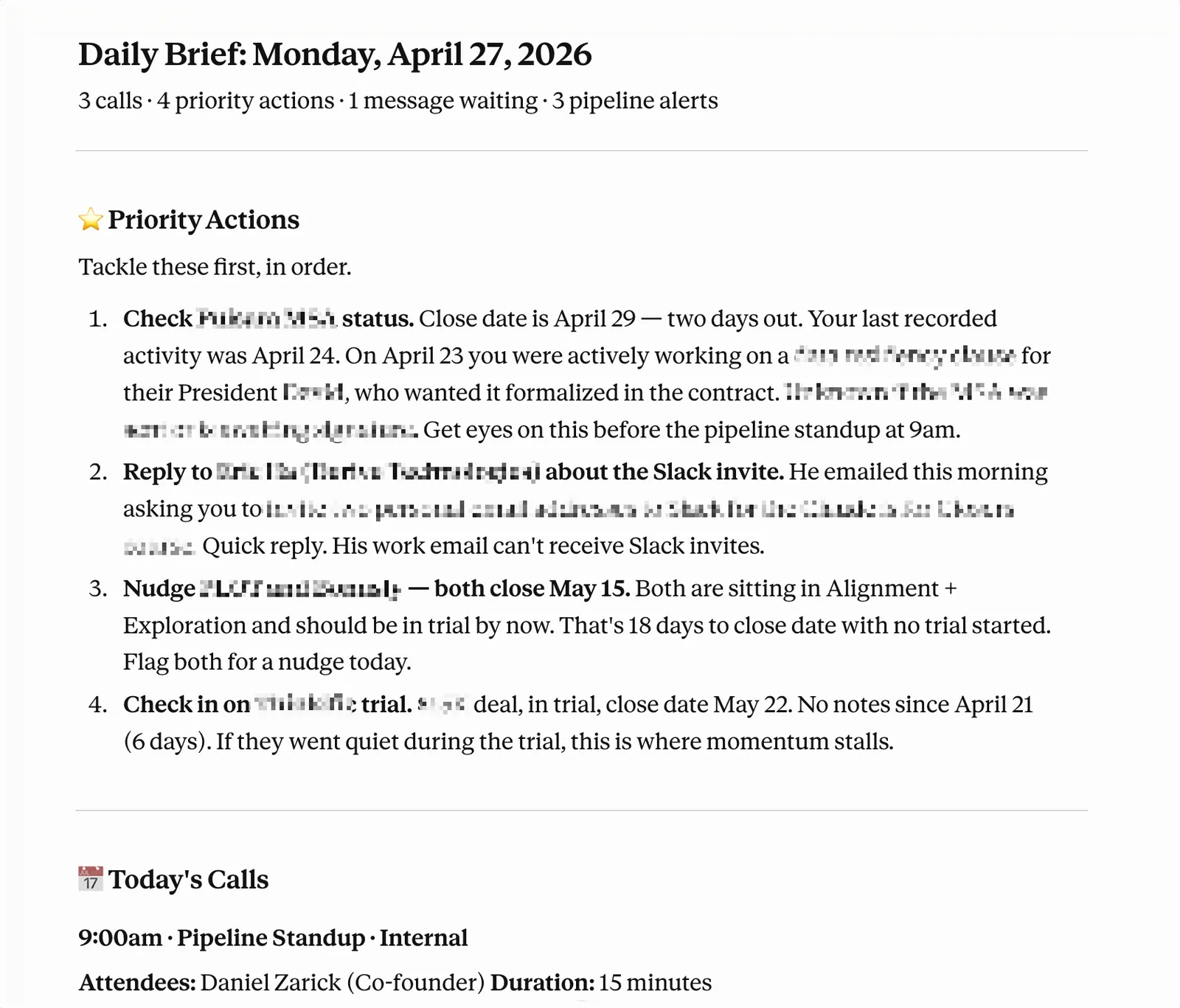
What it does: Pulls your calendar, CRM, call recordings, email, and chat to give you a full picture of your day: every meeting with LinkedIn profiles for attendees, pipeline alerts, messages that need a reply, and how to fill any open time on your calendar.
“Run my Arrows daily brief.”
Tip
Set this up as a scheduled task in Cowork so the brief runs automatically every morning before you start your day. You don’t have to prompt it.
Weekly pipeline review
When to use it: Before your weekly 1:1 or forecast call with your manager.
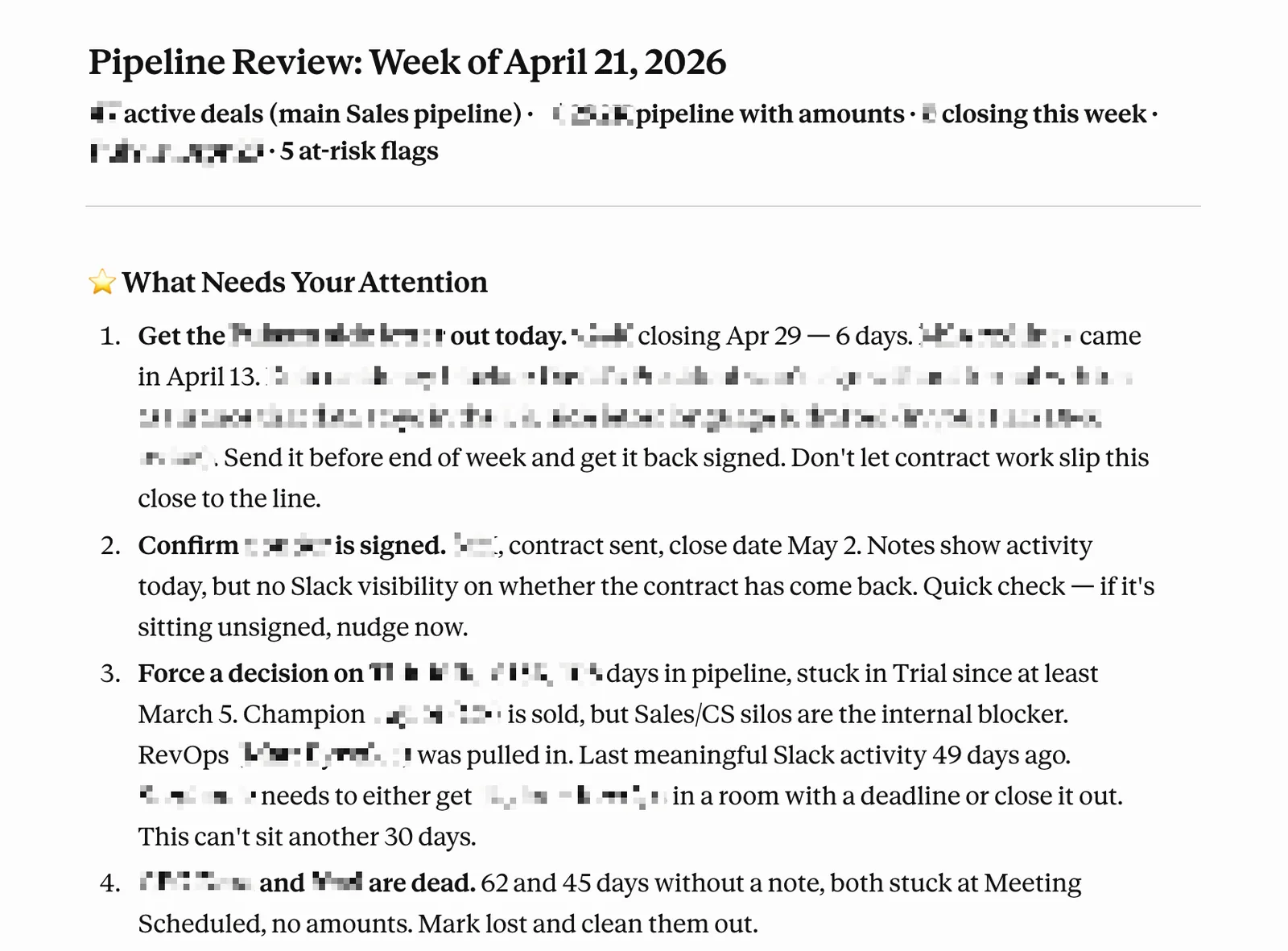
What it does: Scans your entire active pipeline and generates a deal-by-deal status report organized by stage: what’s closing this week, what’s at risk, and anything that needs action. Also generates a live visual artifact you can share with your manager or screenshot before a call.
How to run it with the Arrows Skills connector:
“Run the Arrows weekly pipeline review.”
Tip
After the output, ask Claude to help you prep for the deals your manager is likely to ask about: “My manager is going to ask about [Deal Name]. Help me articulate where it stands and what I’m doing to move it.”
Stalled deal nudge
When to use it: When a deal has gone quiet and you’re not sure how to re-engage without being annoying.
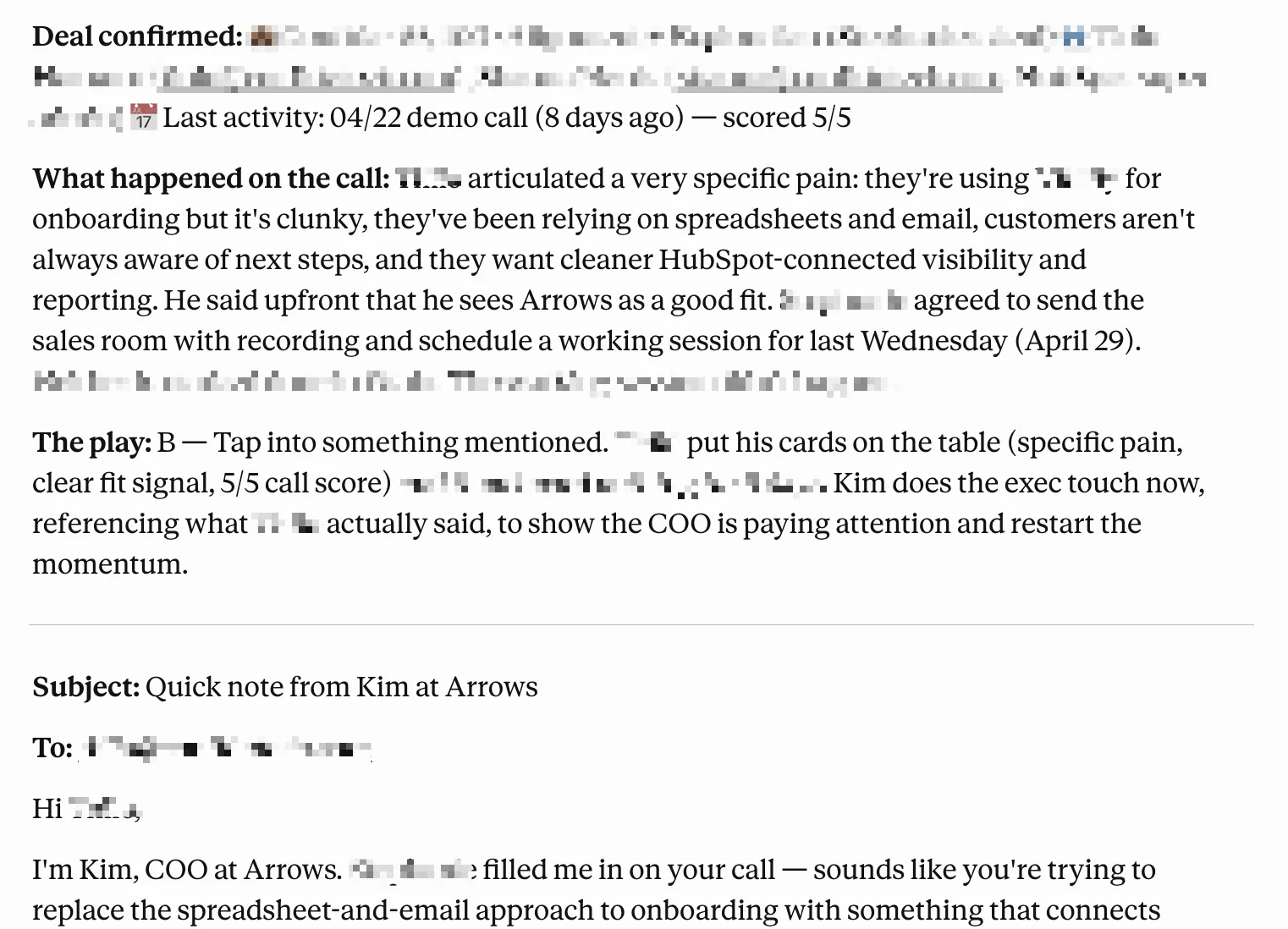
What it does: Reviews the deal history across your CRM, call recordings, email, and chat, picks a specific play based on what the data supports (send a resource, reference something the buyer mentioned, loop in a stakeholder, own a broken commitment), and drafts a personalized re-engagement email. It won’t manufacture a nudge if there’s no real signal to work with.
How to run it with the Arrows Skills connector:
“Run the Arrows deal nudge”
Common mistakes that kill the output
Skipping the context setup. The single most common one. If you haven’t given Claude your product, your buyers, your voice, and your rules, the output will be generic. No amount of clever prompting fixes a missing foundation.
Not giving Claude your actual emails. Most people describe their writing style in the abstract. That’s harder for Claude to work from than just reading ten emails you’ve actually sent. Paste examples into your project instructions.
Treating the first draft as final. Claude’s first draft is a starting point. If something’s off, tell it what to change. One round of feedback usually gets it where you want it.
Using it occasionally instead of daily. The value compounds. Reps who start every morning with the Arrows Daily Brief and draft follow-ups right after every call get dramatically more out of it than reps who remember it exists once a week.
Not updating your project instructions. Your deals change. Your messaging changes. Your competitors change. Keep your instructions current.
What to do right now
- Download the Claude desktop app at claude.ai
- Create a project: name it “My Deals” or similar
- Connect your tools: in Settings → Connectors: start with your CRM, email, call recorder, and calendar
- Install the Arrows Sales Skills connector at skills.arrows.to
- Run the Arrows setup: open a conversation in your project and type (or dictate): “Build my Arrows sales profile”
- Paste the output into your project instructions: pencil icon within your Claude project, top right
- Run your first pre-call prep before your next meeting
After that: use it daily. The reps who get the most out of Claude are simply using it consistently, for the work they were going to do anyway.
Put one gameplan to work across every deal.
See how Arrows turns your sales process into deal work your reps can review and run.

